How to Move a Lovable or Bolt App to a Real Codebase
Move your Lovable or Bolt app from no-code to custom code. Follow this step-by-step guide to export, run locally, and deploy to production.

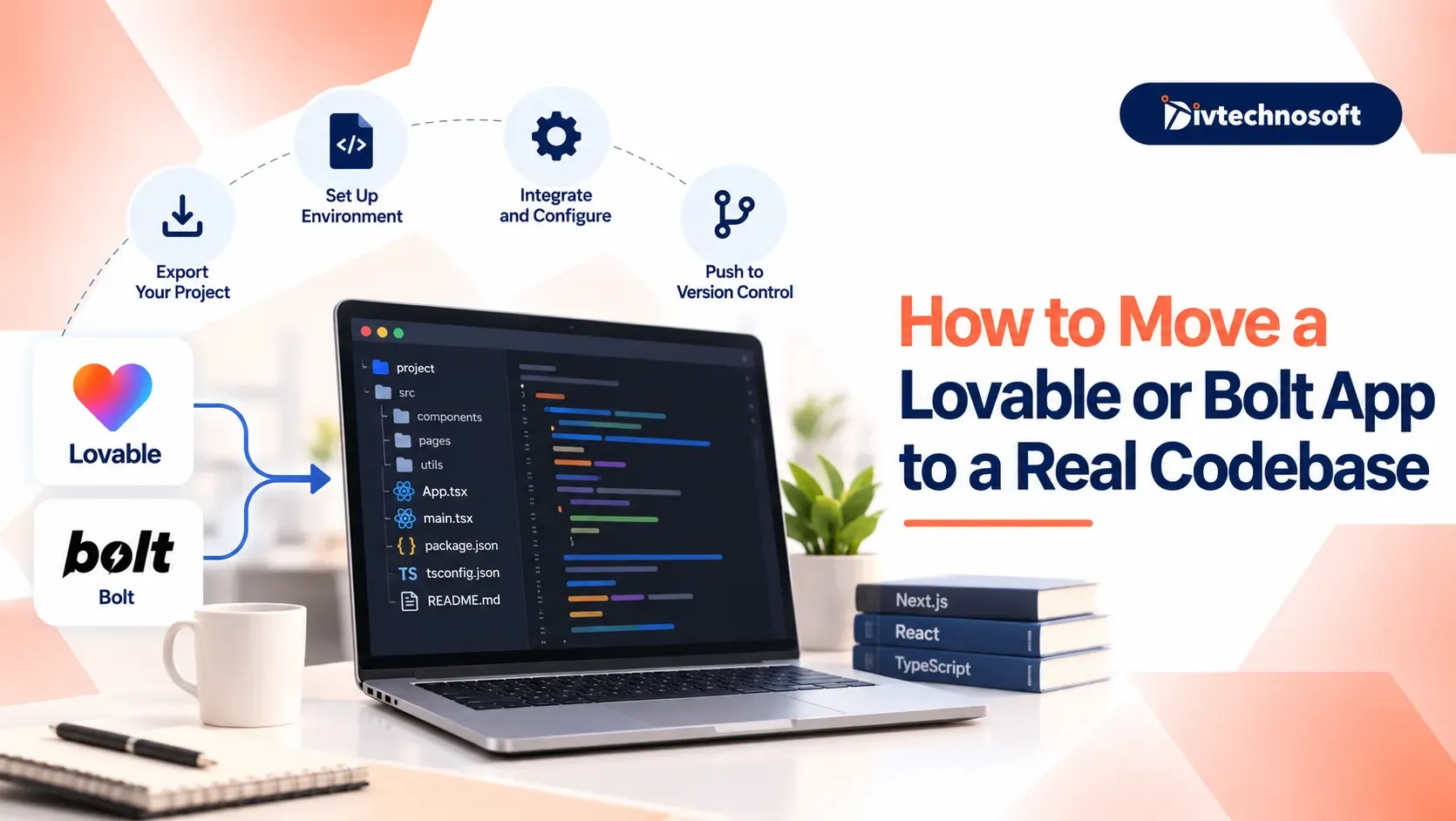
Apps built with Lovable or Bolt are a quick way to turn an idea into a working app. But as your project grows, you may want more control over the code, files, and development process.
This guide explains how to move from an AI app builder to a real app by exporting your code, running it locally, and deploying it.
Why Move from an AI App Builder to a Real App?
AI tools help you build test apps fast. Still, growing apps need real code to scale. Moving to a real codebase gives you full control over your work.
Here is why you should make the switch:
Overcome Browser Limits: Web builders slow down as apps grow. Large apps can freeze, lag, or lose your work.
Full Git Tools: Real code lets you track edits, fix bugs fast, and work with other coders with ease.
True Code Ownership: Moving to custom code stops platform lock-in and avoids sudden price jumps.
Add Custom Features: Real code lets you add safe user logins, private files, and custom payment tools.
If you want to scale your project into a commercial product, work with ReactJS development services to build clean code that your business can safely run on your own servers.
Step 1: Export Code to GitHub
Before you can work on your computer, you need to save your project files. Both Lovable and Bolt let you send your project to GitHub with a few clicks. This gives you a safe copy of your work that you can download anytime.
How to Export Code from Bolt.new
Bolt makes it easy to save your project online or download on your computer. You can link your GitHub account or grab a quick download.
Follow these simple steps:
Look at the top right corner of the Bolt screen.
Click the GitHub button to connect your account.
Choose a name for your new repo and click Push.
If you do not want to use GitHub yet, click the download icon to save a ZIP file to your computer.
How to Export Lovable Code
Lovable has built-in tools that keep your project in sync with GitHub. You can link your project once, and it will update your repo as you make changes.
Follow these simple steps:
Open your project in Lovable and click the GitHub button at the top.
Sign in to GitHub and give Lovable permission to create a repo.
Click the sync button to push all your code to the new repo.
Wait a few seconds until the screen says your files are saved.
Check Your Repository Files
Once you export your code, open your GitHub repo in a browser tab. Make sure all your important project files are there before you move on.
Look for these key files and folders:
package.json: This file lists the tools and packages your app needs to run.
tsconfig.json: This file sets up rules for your TypeScript code.
src folder: This main folder holds your pages, images, and code files.
Step 2: Run the App on Your Computer
Now that your files are safe on GitHub, you can set up the project on your machine. This process takes only a few quick steps and lets you work offline.
Install Required Tools
Your computer needs two free programs to run your project. Download and install Node.js from its main website to run your code, and install Git to manage your project files.
After you install both tools, open your terminal window to make sure they work. Type node -v and git --version to see their version numbers on your screen.
Download and Set Up the Project
Next, copy your project files from GitHub to your computer. Open your terminal, type git clone with your repo link, and press Enter to download your folder.
Move into your new project folder by typing cd followed by your project name. Then, type npm install and press Enter to download all the extra packages your app needs.
Launch the Local Server
Now you can run your app right on your machine. Type npm run dev in your terminal and press Enter to start your local test server.
Look for the local web link in your terminal, like http://localhost:5173. Open that link in your browser to see your app running live without any web builder.
Step 3: Configure Your Environment and Backend
Your app needs private keys to connect with your database and outside tools. Web builders keep these hidden in their settings, so you must move them to your computer.
Add Your Secret Keys
Create a new file named .env in the root folder of your project. Copy your database links and secret API keys into this file.
Important rules for secret keys:
Add .env to your .gitignore file so it never goes to GitHub.
Keep your real keys safe and never share them online.
Link Your Supabase Account
Lovable links to Supabase to store your tables and user logins. Open Supabase, log in to your account, and link your project to take full control of your app data. You can then run Supabase commands in your terminal to download your tables and edit them on your computer.
Step 4: Clean Up Your Code
AI builders write code fast, but they often leave behind extra files. Cleaning up your project makes it load faster and run smoothly.
Remove Builder Tags
Look through your code for helper tags left behind by the AI tool. Check your index.html file and remove extra chat widgets or preview tags that you do not need. Deleting these lines keeps your app clean and stops unwanted pop-ups on your screens.
Break Code into Smaller Parts
AI tools often write entire pages inside one giant file with hundreds of lines. This makes it hard to find bugs or change text later.
Split large files into small pieces:
Create small files for buttons, cards, and forms.
Reuse those small parts across different pages.
Check for Code Errors
Run quick check tools in your terminal to catch mistakes before your users do. Type npm run lint or npx tsc to test all your project files. These tests show you if any links are broken or if file types do not match.
Test Your App Before Deployment
Before publishing, check that your app works as expected. Test the main user flows, login and signup, database access, and API integrations. Check the mobile layout and run a production build using:
npm run build
Fix any errors before moving to deployment. If your project uses a different build command, check the scripts section in package.json.
Step 5: Publish Your App
Once your local app works correctly, you can move your Lovable app to production. Choose a web host, configure your environment variables, and connect your domain to make the app available to users. The same process can work for compatible Bolt projects.
Pick a Web Host
Choose a simple cloud host like Vercel or Netlify to put your site online. These platforms connect to your project and offer free starter plans. They keep your site fast, safe, and online at all times.
Set Up Auto Updates
Link your GitHub repo to your web host so your site updates on its own. Every time you push new code to GitHub, your host builds and updates your live site automatically. This means you never have to upload files by hand.
Add Your Web Address
Make your site look official by adding your own domain name, like yourcompany.com. Follow the simple steps in your host settings to link your web address.
Key benefits of your own domain:
Build trust with your visitors and clients.
Includes a free security lock to keep user data safe.
Common Problems When Running Your App Locally (+Fixes)
You may encounter errors after exporting your project. Here are common issues and their fixes.
Problem | Solution |
|---|---|
Missing Dependencies | Run npm install to install packages, then npm run dev to start the app. |
Missing Environment Variables | Add the required variables to your .env or .env.local file and restart the development server. Keep private keys out of frontend code and Git. |
Database Connection Errors | Check your database URL, credentials, access policies, and required tables. |
Build Errors | Run npm run build and fix errors such as missing packages, incorrect imports, or TypeScript issues. |
Deployment Failures | Check deployment logs and verify the build command, output directory, environment variables, and framework settings on Vercel or Netlify. |
Fix one error at a time and test your app after each change to identify the cause quickly.
What to Do Next
Moving your project from an AI tool to a real codebase is a smart move. Saving your files, setting up keys, and testing locally gives you full control.
These steps help you migrate Lovable app projects safely and take your work from bolt.new to production. Divtechnosoft specializes in end-to-end MVP development to turn AI prototypes into scalable web platforms and custom apps. Look over your code, talk to real coders, and launch your app with ease.
FAQs
Can I export a Lovable or Bolt app to GitHub?
Yes. Both platforms support GitHub integration, allowing you to sync your project code and continue development on your computer.
Can I run my Lovable or Bolt app without the original builder?
Yes. You can run the exported code locally if you have the required dependencies and access to the backend services your app uses.
Do I need to migrate my database when exporting my app?
Not always. If you continue using your existing database, you usually need to configure its connection. Moving to a new database may require transferring the schema, records, and other data.
How do I run a Lovable or Bolt app locally?
Install Node.js and Git, clone your repository, and run npm install followed by npm run dev in your project folder.
Can I deploy my exported app to Vercel or Netlify?
Yes. You can deploy a compatible web app to either platform after configuring its build settings, environment variables, and backend connections.
Will my app still work after I stop using Lovable or Bolt?
Yes, provided you have the required code and maintain any external services your app depends on, such as databases, authentication providers, and APIs.