How to Publish a Replit App to the App Store
Learn how to publish a Replit app to App Store channels. Follow this step-by-step guide to package your code, pass Apple review, and launch smoothly.

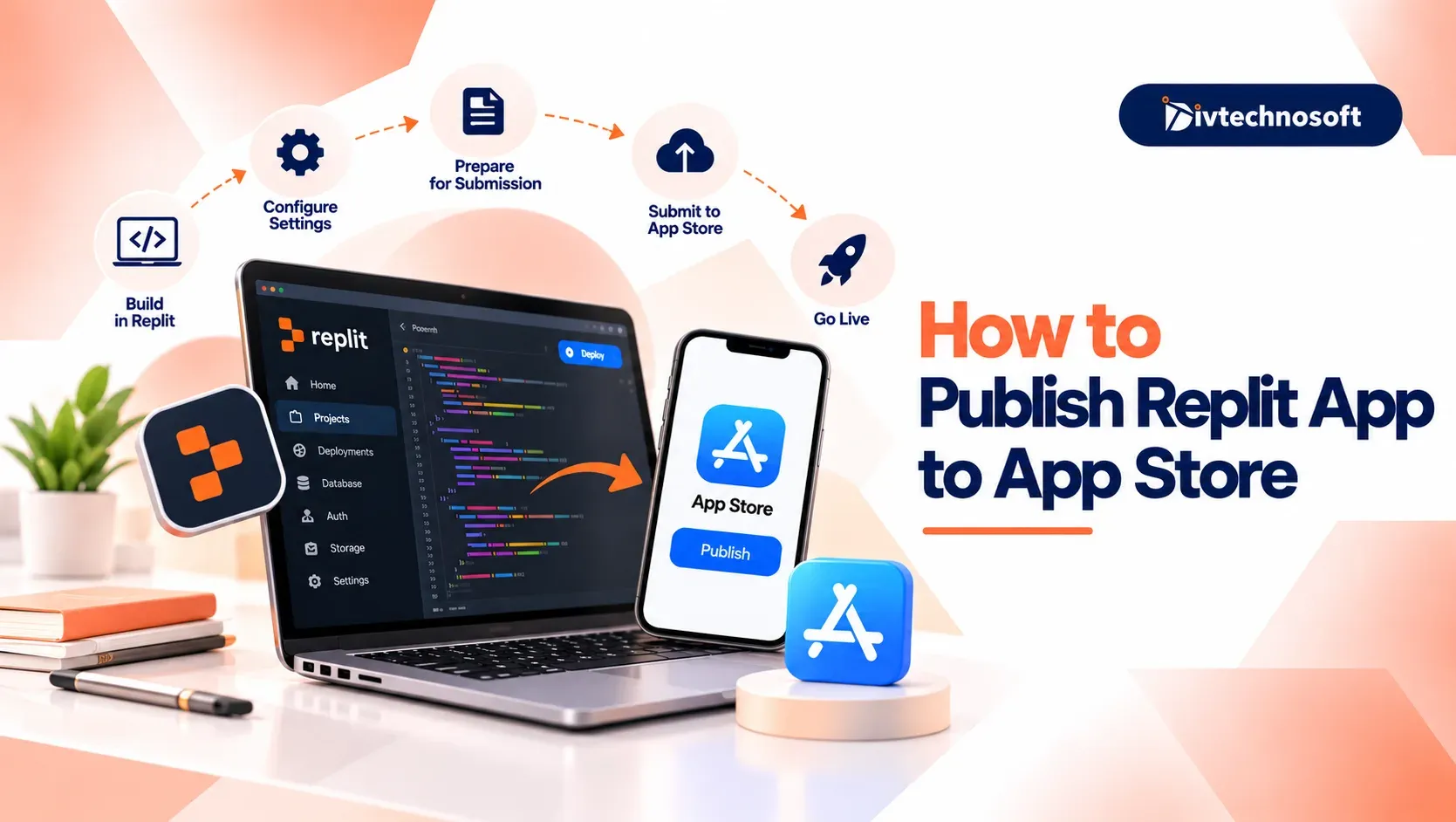
Publishing a Replit app to the Apple App Store involves more than building the app. You need to prepare it for iOS, configure the required Apple developer settings, test it, and submit it for review.
This guide walks you through each step to publish your Replit app on the Apple App Store.
Replit Web Apps vs. Native iOS Apps
Replit helps you build web apps fast. But you cannot send normal web files to the Apple App Store.
Apple has rules that plain web code cannot meet:
File Types: Web pages run in a web browser, and Apple needs a bundled file called an IPA to install on a phone.
Digital Keys: Apple asks for security keys to prove who made the app and keep users safe.
Phone Tools: Real phone apps need direct access to cameras, photos, push alerts, and web code has limited access to them.
Fast Speed: Apple tests how fast your app runs and drops slow pages that do not feel like real phone apps.
You must wrap your Replit code into a mobile app before Apple will take it. To reach more people, you can publish Replit apps on playstore with simple tools, which helps you build a clean file for other phone users.
Publish Replit App to iOS - Step Guide
Follow these steps to publish a Replit app to iOS devices. This will help you move your code, wrap your files, and send your app to Apple.
Prerequisites
Requirement | Cost | Purpose |
|---|---|---|
Apple Developer Program | $99 per year | Lets you build, sign, and upload apps to iOS. |
Mac Computer | One-time cost | Needed to run Xcode and build your app files. |
App Icons and Art | Free | Shows your logo on phone screens. |
Privacy Policy Link | Free | Tells users how you handle their data. |
Demo Test Account | Free | Gives Apple a login to test your app. |
Set these items up first so your review goes fast. An active Apple account and a working Mac save time later. Next, let us look at the exact steps to turn your Replit code into an iOS build.
Step 1: Export Your Code from Replit
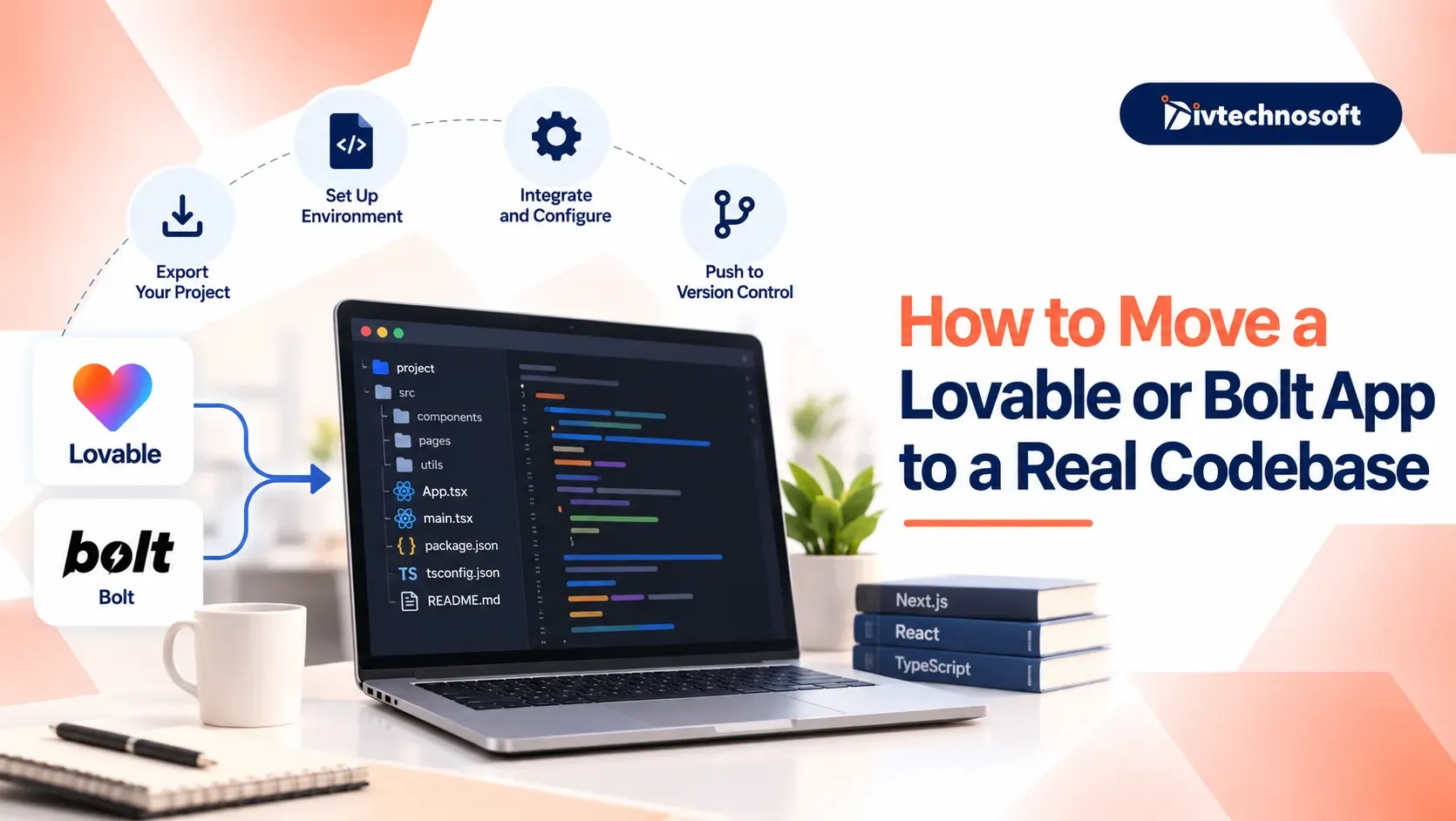
Your project starts in Replit. To prepare a web app for iOS, you first need to download its code to your Mac.
You can connect Replit to GitHub and push your latest code to a repository. Then open Terminal on your Mac and clone the repository. Alternatively, open your project in Replit, select Download as ZIP, and extract the downloaded files.
Open Terminal, navigate to your project folder, and run:
npm install
npm run build
The first command installs the project's dependencies. The second creates a production build of your web app, usually in a dist or build folder. The exact output folder depends on your project's configuration.
Note: These commands apply to compatible web projects that use npm and have a build script defined in package.json.
Step 2: Wrap Your Web App with Capacitor
Capacitor lets you package a compatible web app inside a native iOS project. This allows you to open and build the app in Xcode.
In Terminal, navigate to your project folder and run:
npm install @capacitor/core @capacitor/cli @capacitor/ios
npx cap init
During initialization, enter your app's name and a unique application ID, such as com.example.myapp.
Next, check your capacitor.config file and ensure the webDir value matches your web app's actual build output folder. For example, use dist if your build creates a dist folder.
Build your web app and add the iOS platform:
npm run build
npx cap add ios
npx cap sync ios
Whenever you update your code in Replit, bring the changes into your local project, rebuild the web app, and run npx cap sync ios to update the iOS project.
Important: This method is for compatible web apps. If you created a native mobile app in Replit, you may need a different build and publishing workflow.
Step 3: Configure and Test Your App in Xcode
Once the iOS project is ready, open it by running:
npx cap open ios
Xcode opens the iOS project on your Mac. Before building the app, configure these settings:
Select your project in Xcode and enter the same unique application ID you configured in Capacitor.
Under Signing & Capabilities, select your Apple Developer team and enable automatic signing if appropriate.
Open the asset catalog and add the required app icon assets.
Configure the display name, supported devices, permissions, and other settings your app needs.
Run it on an iPhone connected to your Mac or in an iOS simulator. Check navigation, forms, login, and other important features.
You need a Mac with Xcode to build and test this iOS project using the workflow described above. You should also have the required Apple Developer membership for App Store distribution.
Step 4: Submit Your App Through App Store Connect
After testing your app, prepare a release build in Xcode. Select the appropriate build destination, create an archive, and upload it to App Store Connect.
Sign in toApp Store Connect and create an app listing if you have not already done so. Add the required details, including:
App name and description
Screenshots and app metadata
Privacy information and age rating
The uploaded build and any required review information
Once the build has finished processing, you can use TestFlight to test the uploaded version before release. When you're ready, select the build, complete the required submission details, and submit it for Apple's review.
If Apple approves the app, release it according to your selected release settings. If it is rejected, address the review feedback and resubmit it.
How to Avoid Replit App Store Rejections
Testing your app early stops a Replit App Store rejection on your first try.
Fix these three common problems before you submit:
Add Native Features: Apple drops apps that act like simple sites. Add real phone tools to keep users happy. Use push alerts, camera tools, or screens that work without web access.
Allow Account Deletion: If users can make an account, they must be able to delete it. Put a clear delete button inside your app settings.
Use Store Billing: Sell digital items only through Apple. Do not send users to web checkout links.
Apple tests each screen by hand. If you want help building phone tools that pass review, teaming up withFlutter development services helps you build clean mobile software.
Launch Your Replit App on iOS Today
Taking your app from Replit to the Apple App Store takes time, but you can do it. You move your code to your computer. Then you wrap your files, sign your build in Xcode, and send it to Apple.
Launching your first app on the App Store is a big win for any creator. Shipping a Replit mobile app often brings tricky build errors. Turning web code into a phone app often brings tricky build errors.
Divtechnosoft helps by setting up phone tools and fixing Xcode signing bugs. This keeps your build safe from review rejections. Start by setting up your Apple account today to get your app live.